
Gaming
Gaming on Cyclop OS
Play native Linux games, Steam Play titles, and games built for Windows using powerful tools like Steam, Proton, and Lutris.
Start with Cyclop Gaming
Cyclop Gaming is already on the machine, in the menu. Open it before anything else: it looks at this computer and tells you what is ready and what is missing, instead of leaving you to find out when a game refuses to start.
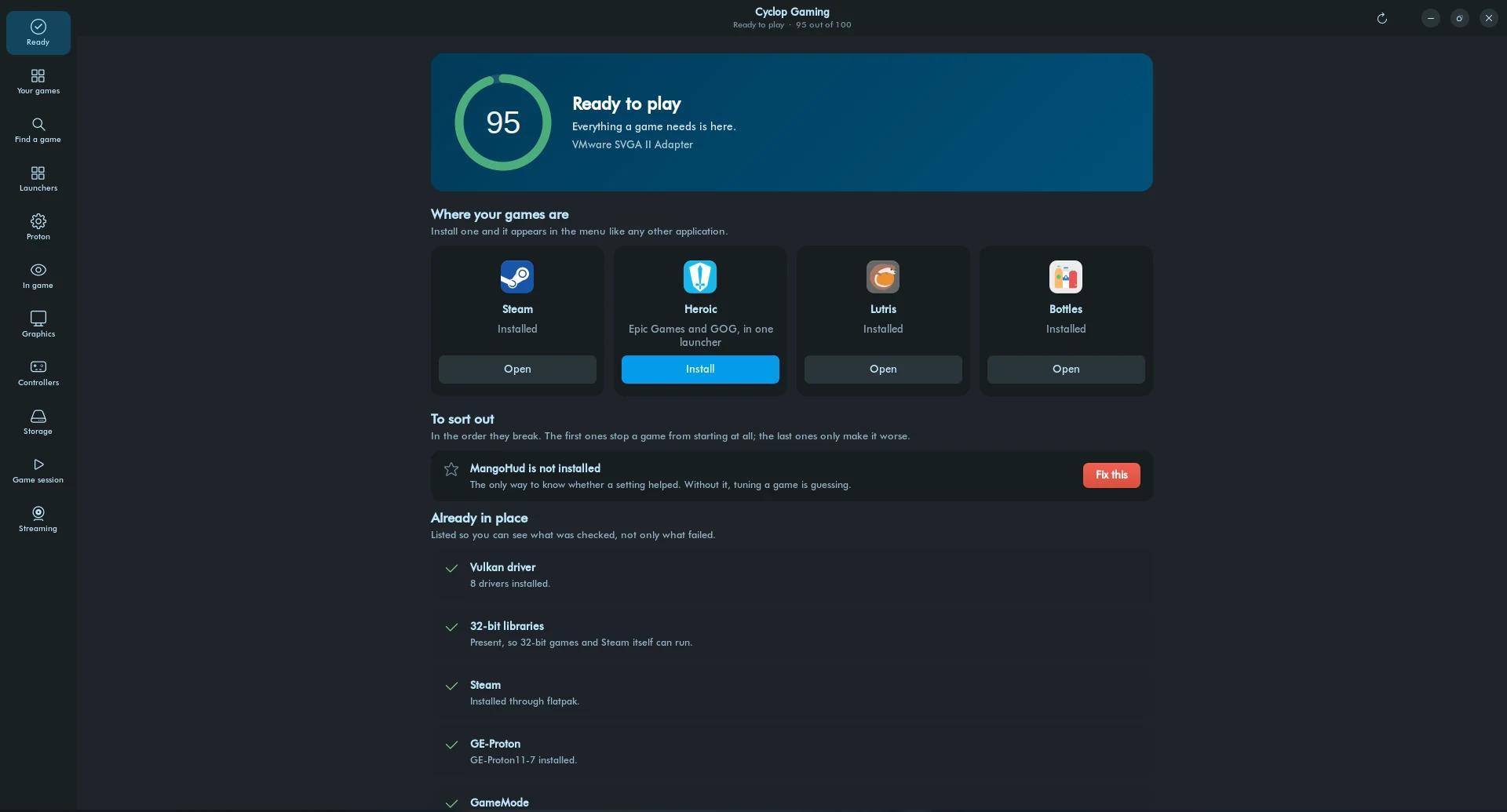
It installs the launchers below for you, checks the graphics driver, Vulkan and the 32-bit runtime, and lists what it found in the order that matters: what stops a game from starting at all first, what merely makes it worse last.
Play games with Steam
Steam is the largest gaming platform and runs natively on Cyclop OS. It supports Linux-native games and games built for Windows through Proton.
- Open the Cyclop Menu and search for Steam in the Games category.
- Log in to your Steam account or create one.
- Browse the store and install any native Linux game.
Enable Steam Play for more games
- In Steam, go to Settings then Steam Play.
- Enable Steam Play for all titles.
- Restart Steam to apply the change.
- Install and launch a title, and it runs through Proton.
Play games with Lutris
Lutris is a game manager that supports GOG, emulators, and games built for other platforms.
- Open the Cyclop Menu and search for Lutris.
- Open the Community Installers tab.
- Search the Lutris library for your game.
- Click the game and follow the installation steps.
- Launch it from the Lutris home screen.
Install Windows games
Many games built for Windows run on Cyclop OS through Proton, Lutris, or Wine:
- Use Steam Play with Proton (best for most games).
- For non-Steam games, use Lutris.
- For standalone titles, install Wine.