
Applications
Install an application, and know what you installed.
Cyclop Store holds about 4,850 applications. Two kinds of package live side by side in it, and the difference is worth thirty seconds of your attention.
Where it is, and what is in it
Cyclop Store is in the applications menu. Its catalogue joins three sources into one list: the system repositories, our own packages, and Flathub.
The whole catalogue is already on the disk, so browsing and searching work with no connection at all. Only the screenshots go looking for the network, and a card without one keeps its colour rather than breaking the page. That is not a detail: a school on a bad line is exactly who this was built for.
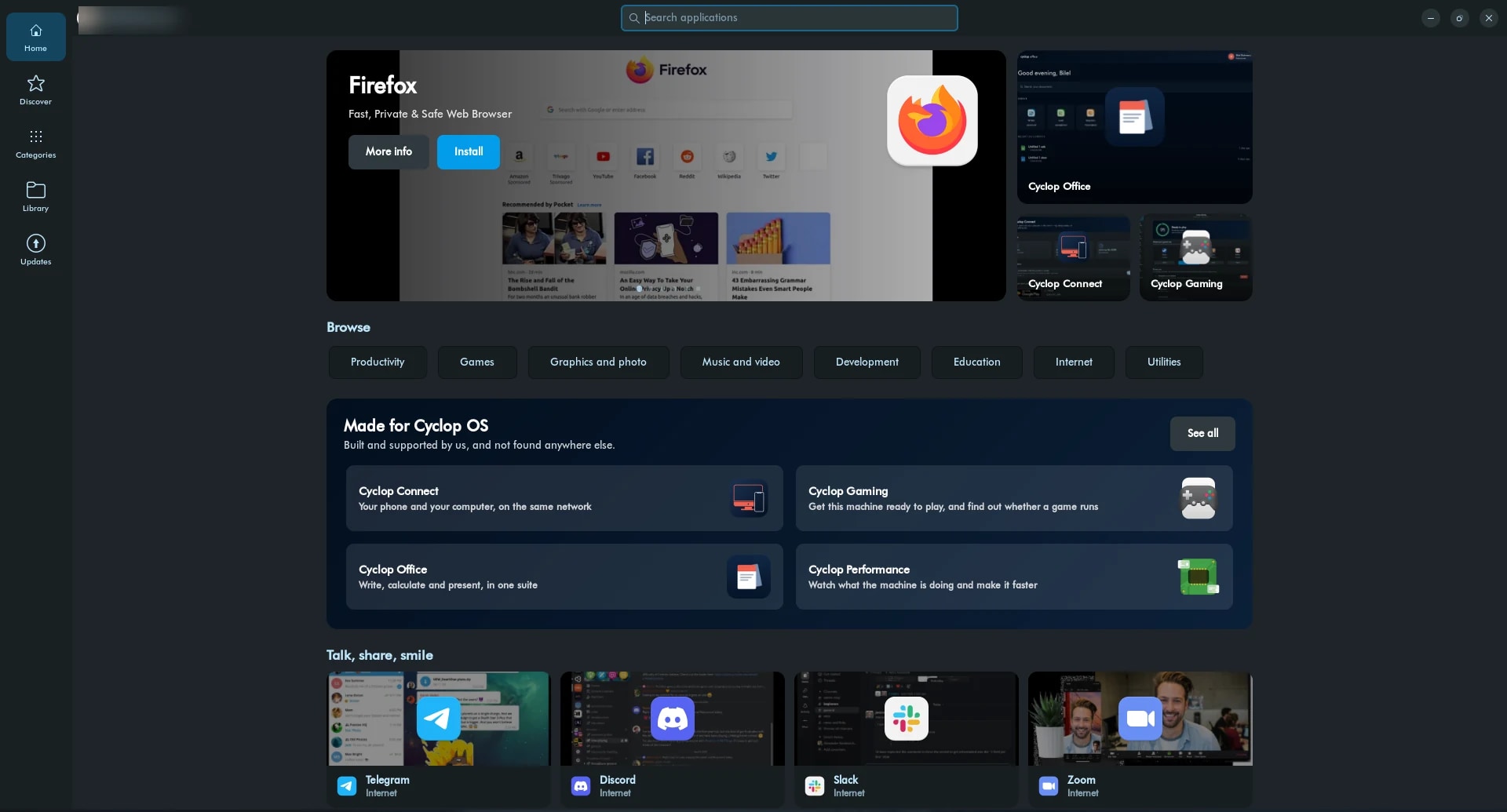
The first screen. Made for Cyclop OS gathers what we build and support ourselves.
Install something
- Open Cyclop Store
- Search from the field in the header. It is there on every screen
- Open the application and read its page: description, screenshots, and which kind of package it is
- Press Install
- Your password is asked for a Debian package, and not for a Flatpak installed for you alone
A Debian package, or a Flatpak
A Debian package is part of the system. It shares the libraries everything else uses, so it is small, it updates with the system, and it is the package we tested.
A Flatpak brings its own libraries with it. It is kept apart from the rest of the system, it is often a newer version, and it comes straight from the people who wrote the application.
The first Flatpak you install pulls several hundred megabytes of shared components with it. The next ones do not: they reuse the same ones. The application page says so before you press anything, which is the point of saying it.
Which one to prefer
When both exist, take the Debian package. Lighter, and already part of what we maintain and update.
Take the Flatpak when there is no Debian package, or when you need a version newer than the one in the archive.
A .deb file you downloaded yourself
Some publishers hand out a .deb file on their own website. Double-click it and it opens in Cyclop Store, with an Install button like any other application.
From a terminal it is one line, and the leading ./ matters: without it apt looks for a package of that name in the archive rather than for your file.
- sudo apt install ./the-package.deb
A .deb from an unknown website is code you are about to run as root. Prefer the store, and when you cannot, prefer the publisher’s own address over a mirror.
Add a software source
Advanced, and rarely necessary: a project that publishes its own repository can be added from a terminal, and its packages then update with everything else.
- sudo add-apt-repository ppa:publisher/name && sudo apt update
- sudo apt install the-package
Remove something
From the Library. Removing takes out every package of the component, not only the one that carries the icon: leaving the data and the plug-ins behind is not removing an application.
What the store deliberately does not do
No ratings, no review counts, no download numbers. The catalogue carries none of them, and there is no honest way to invent them offline. What stands in their place is a selection we put our name to, written in a file anyone can read.
It does not take payments. An application reserved to a paid edition is shown in full, screenshots and description included, with a button that names the edition needed and opens the website. A price banner across the picture sells nothing: you have to be able to want the thing before anyone asks you to pay for it.
It does not handle system packages or firmware. That is Settings, Updates.
If it does not work
- A big category takes a moment: it draws sixty cards at a time with a button for the rest. That is deliberate. The first version drew four hundred at once and the machine killed it before it finished.
- A paid application refuses to install: the repository of that edition is closed for this machine. Settings, Accounts, Subscription.
- An application is visible but will not open, and the button says why: that is parental control on this account. A child has the right to see what applies to them, so it stays visible.