
USB drive
Write the image to a USB drive.
A downloaded image is a file like any other. It becomes something a machine can start from once it is written across a whole USB drive, and writing it erases that drive.
What you need
The image file you downloaded, and a USB drive of 8 GB or more. The image is around 6 GB, so a 4 GB drive will not do.
Everything already on the drive is lost. Not moved, not tucked into a folder: gone. Take a drive you are happy to empty, or empty it yourself first.
Dragging the file onto the drive in a file manager does not work, even though everything suggests it should. A machine starts from the very beginning of a drive, and a copied file leaves that beginning empty. Only a writing tool puts something there.
Write it, the way that works everywhere
Balena Etcher is free and runs on every system you might be coming from. It does one thing, which is why it is hard to get wrong.
- Install Balena Etcher from balena.io/etcher
- Plug the USB drive in
- Open Etcher, choose Flash from file, and pick the Cyclop OS image
- Choose Select target and pick the USB drive. Read the size shown next to it before you click
- Click Flash, and leave the machine alone for five to fifteen minutes
- Etcher reads the drive back at the end and says Flash Complete. Let it finish that part too
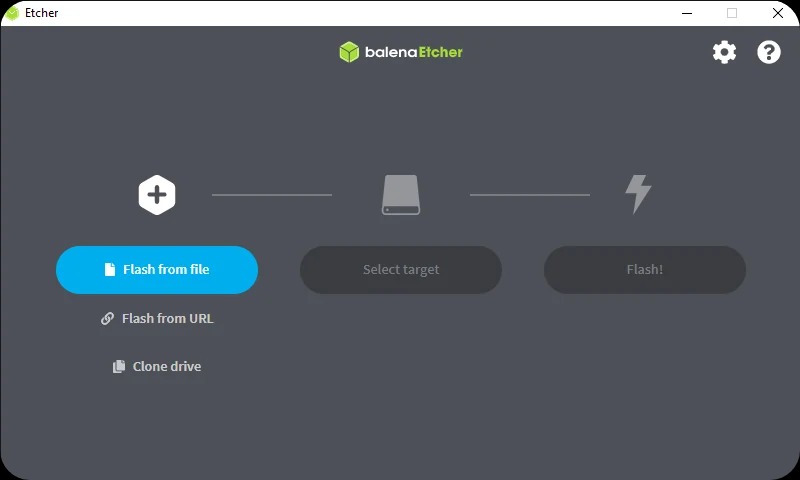
Three buttons, left to right: the image, the drive, Flash.
Or one line, if you are already on Linux
Cyclop OS, and any other Linux, does it from a terminal with nothing to install.
- Run lsblk, unplug the drive, run lsblk again: the line that disappeared is your drive
- Plug it back in and run: sudo dd if=cyclop-os-4.0.iso of=/dev/sdX bs=4M status=progress conv=fsync
- Replace sdX with the name you just found, and wait for the prompt to come back
dd writes exactly where you point it, immediately, with nothing to confirm and no way back. Name the drive (/dev/sdb), never a partition (/dev/sdb1), and check the name twice: the same command aimed at your own disk erases your own disk.
Start the machine on the drive
- Shut the machine down completely rather than restarting it
- Plug the drive in, preferably in a port at the back on a desktop machine
- Power it on and press the boot menu key straight away: F12, F11, F9, Esc or Del depending on who built the machine. It is written on the very first screen, for about a second
- In the list, take the line carrying the name of your USB drive. It usually has USB or UEFI in it
Miss the key and the machine starts on its own disk as usual. Nothing is broken: shut it down and try again.
What you should see
A few seconds of text, then the Cyclop OS desktop, running entirely from the USB drive. The installer opens by itself on top of it.
Nothing has been written to the machine disk at this point. You can close the installer and use the system as it is: open the browser, check that the wifi connects, that sound comes out, that the screen is at its real resolution. What works here is what will work once installed.
It runs slower than an installed system because everything is being read from a USB drive. That is the drive, not the machine.
If it does not work
Three causes, in the order you will meet them.
- The drive is not in the boot list at all. Most often the image was copied rather than written. Write it again with Etcher, or try another port: some firmware does not offer the front ports of a desktop machine.
- The machine starts on its own system instead. The key was missed, or the firmware is set to ignore USB drives. Its setup screen holds a boot order you can change.
- A security message instead of a desktop. The firmware is refusing to start a boot loader it does not recognise. The setting is called Secure Boot and it lives in that same firmware setup.
Afterwards the drive looks almost empty in a file manager, and your system may offer to repair or format it. Say no. To use it as an ordinary drive again, format it on purpose once you no longer need the installer.