
Cyclop Connect
Your phone and your desktop, on the same network.
Notifications, the clipboard, files, and the phone ringing from your keyboard. Nothing passes through a cloud and nothing needs a third account.
What you need
A Cyclop OS machine on a paid edition (Education, Pro, Gaming or Enterprise), and an Android phone.
Both on the same local network. That is not the same as both having internet: a guest network that keeps its devices apart from each other will never let them see one another.
Cyclop Connect became part of the paid editions in September 2026. On Community the desktop half is not in the repository at all, so it cannot be installed, and the phone refuses to pair with a machine that holds no licence and points you to your account instead.
Pair them
- On the computer, open Cyclop Connect from the applications menu
- Install Cyclop Connect on the phone from the Play Store
- Open it with both devices on the same network. The computer appears in the list
- Tap it and ask to pair
- Accept on the computer, after checking that the code shown is the same on both screens
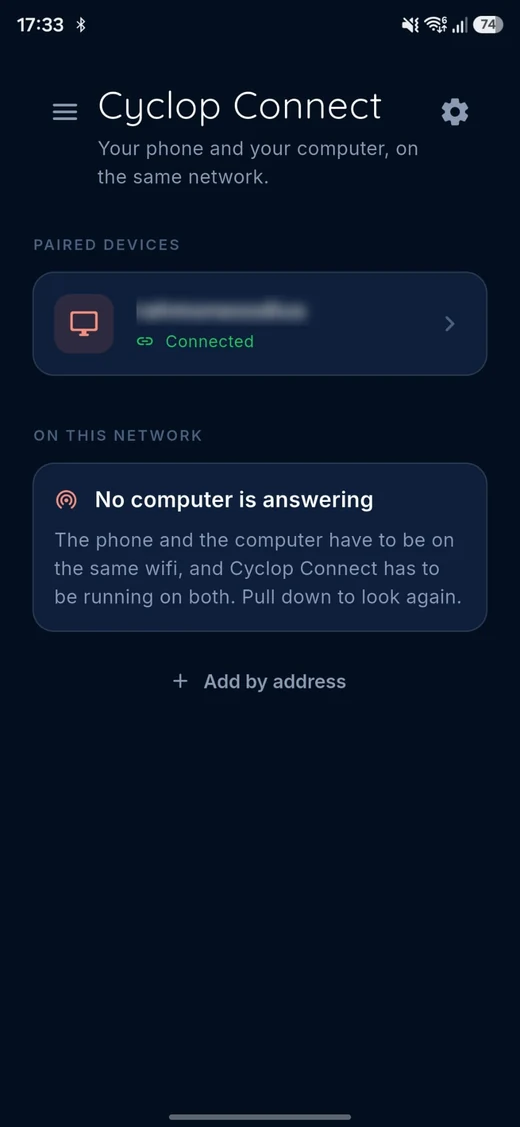
On the phone, once paired. Green means the computer is answering right now.
What you should see
The phone shows the computer as paired, and the computer shows the phone with its battery level. From then on, a notification arriving on the phone shows up on the desktop within a second.
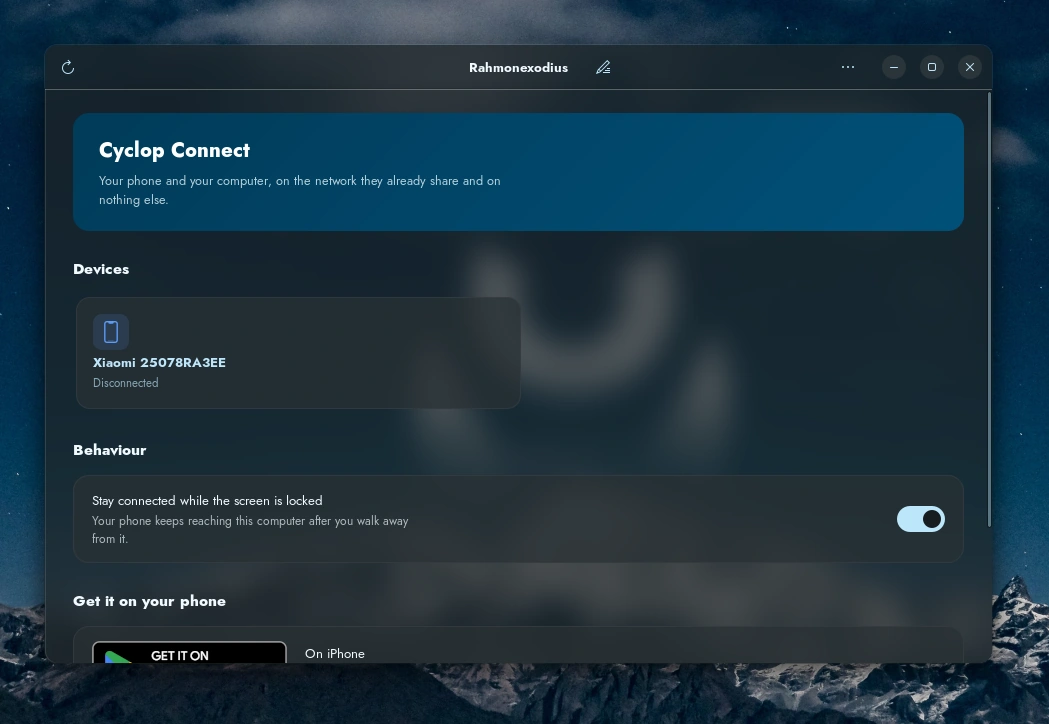
Every paired device, and whether it is reachable right now.
What it does
Phone notifications on the desktop. The clipboard shared both ways, so text and links copied on one side paste on the other. Files and links sent either way. The phone made to ring when it has fallen down the sofa, even on silent, and the desktop made to ring from the phone. Media playback and volume driven from the phone, and the phone used as a touchpad and a keyboard. Commands you have set up on the computer, run from the phone. The phone battery watched from the desktop.
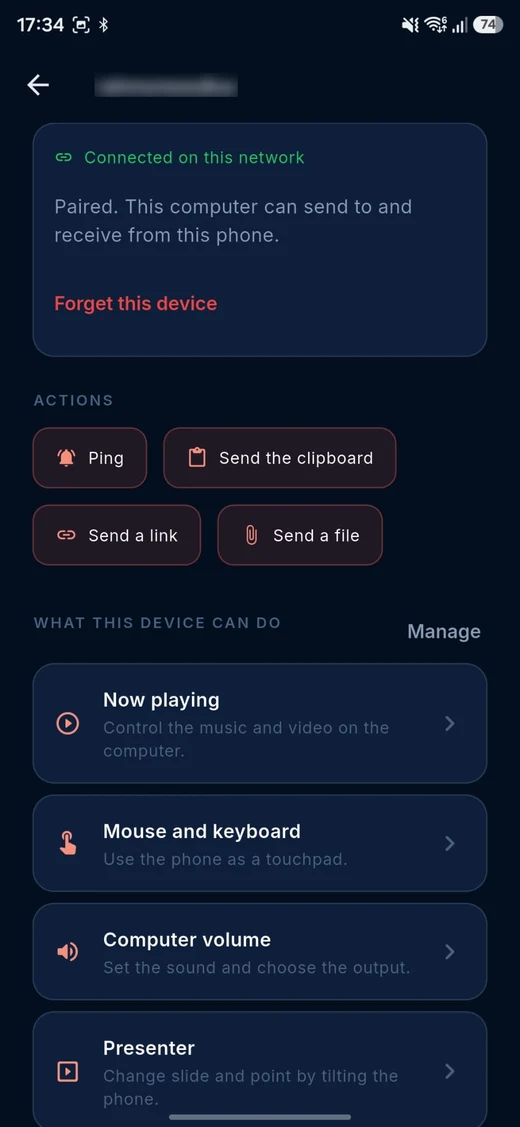
Everything the phone can do to that computer, on one page.
What it deliberately does not do
Driving the phone from the computer, and browsing the phone’s files, were both taken out. Typing into a field on the phone would have required permission to read the content of every window on it, and reaching the real storage would have required the permission reserved for file managers. Neither is a fair trade for a convenience, so the buttons are gone rather than present and lying.
File sharing in the other direction stayed. That is the half that works without asking for anything.
On iPhone
Today the application is on Android only. There is no iPhone app in the App Store, and we give no date for one. If it ships, it will do less: reading this phone’s notifications, its messages and its contacts are not things an application other than Apple’s own is allowed to do there. We would rather say that than ship a button that does nothing.
If it does not work
- The computer never appears in the list: the two devices are not on the same network. A phone on mobile data, or a guest wifi that isolates its clients, cannot see the computer.
- The phone says the machine is not under an edition that allows it: the answer is the edition, not the network. Settings, Accounts, Subscription.
- The phone says it is not a Cyclop OS machine: Cyclop Connect pairs with Cyclop OS and nothing else.