
Performance
Speed, heat and battery.
Cyclop Performance shows what the machine is actually doing, lets you pick how hard it should work, and names what is slowing it down instead of leaving you to guess.
Open it
It is in the menu under Cyclop Performance, and it needs no setup. The first screen gives a single score out of a hundred and, right under it, the reason for that score.
The score is not a benchmark. It says whether this machine is set up well, not whether it is fast: a modest laptop in good order scores higher than a powerful one with twenty programs starting at login.
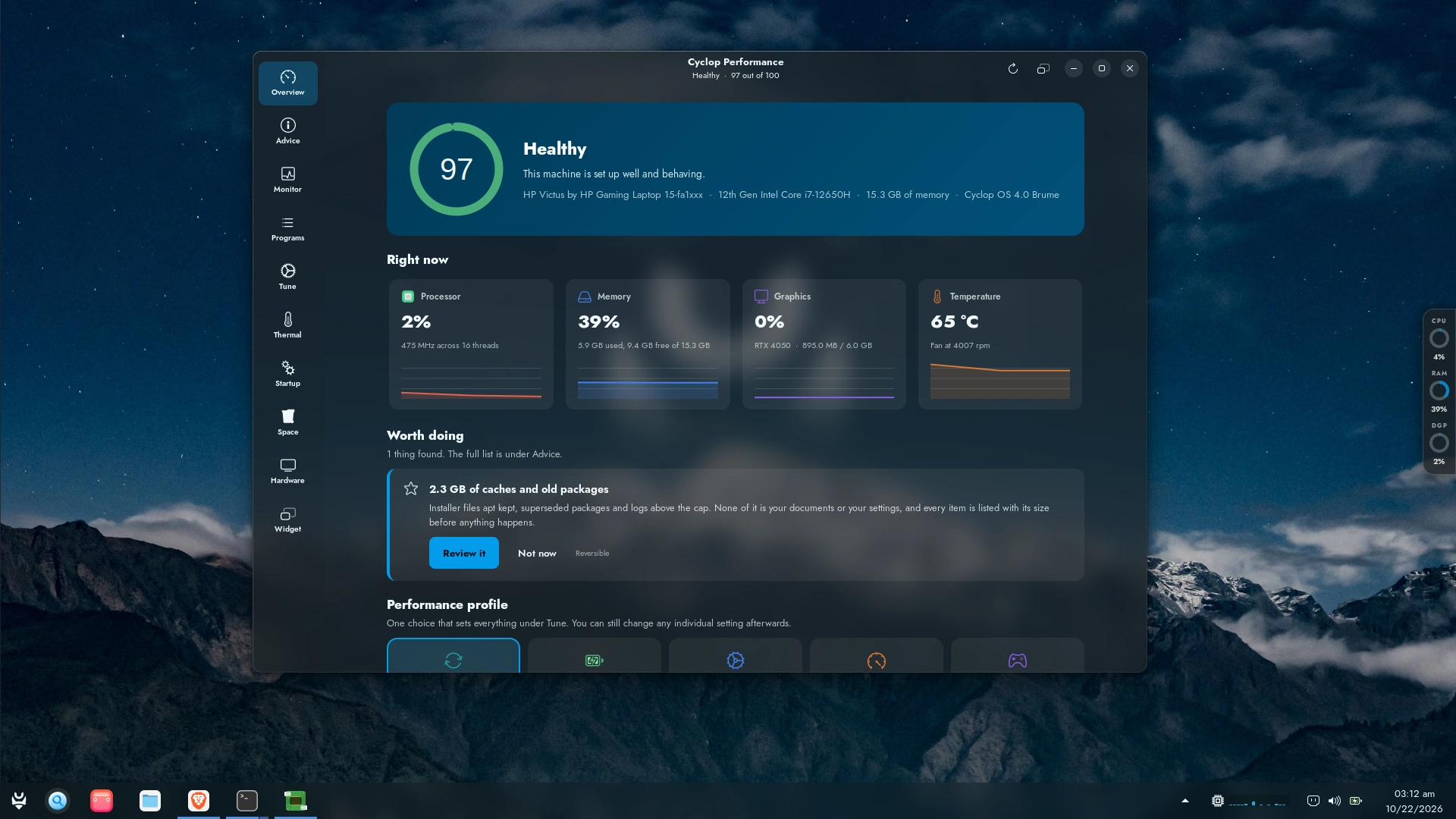
The first screen. Everything that follows is a detail of something shown here.
Read what is happening right now
Four panels: processor, memory, graphics, temperature. Each one carries a small curve, because a number on its own says nothing. Ten per cent of processor is normal; ten per cent that never comes back down is not.
A panel showing a dash is not a fault. It means this machine does not publish that figure. Virtual machines rarely expose a temperature sensor, and many laptops report no graphics load at all.
Choose a profile
Four choices, and the difference between them is what the machine is allowed to spend to go faster.
- Battery: the longest runtime and the quietest machine. The right one on a train.
- Balanced: what most machines should be on. Chosen by default.
- Performance: full speed, plugged in. Fans included.
- Gaming: everything for the game in front of you, and nothing for the rest.
On a machine that publishes no thermal profile and no frequency governor, the four differ only in the memory and service settings, which are the same in all of them. The application says so on the screen rather than pretending the choice changed something.
Find what is slowing it down
Advice lists what is worth changing, in the order that matters: what stops the machine working first, what merely makes it worse last.
Programs shows what is running and what it costs, sorted by weight. Startup shows what launches at login, which is where most of a slow start comes from. Space shows what fills the disk, because a disk with nothing left slows down everything else.
The widget
The Widget page puts a small processor and memory reading on the panel, always visible. It is a shell extension, so it appears at your next login and not immediately.
It is worth turning off before taking screenshots or sharing your screen: it changes every second, and it is the one thing on screen that will move while you are explaining something else.