
Troubleshooting
When something goes wrong.
The checks worth running before anything else, and where to look when a machine feels slow, will not connect, or stops responding.
Start with the updates
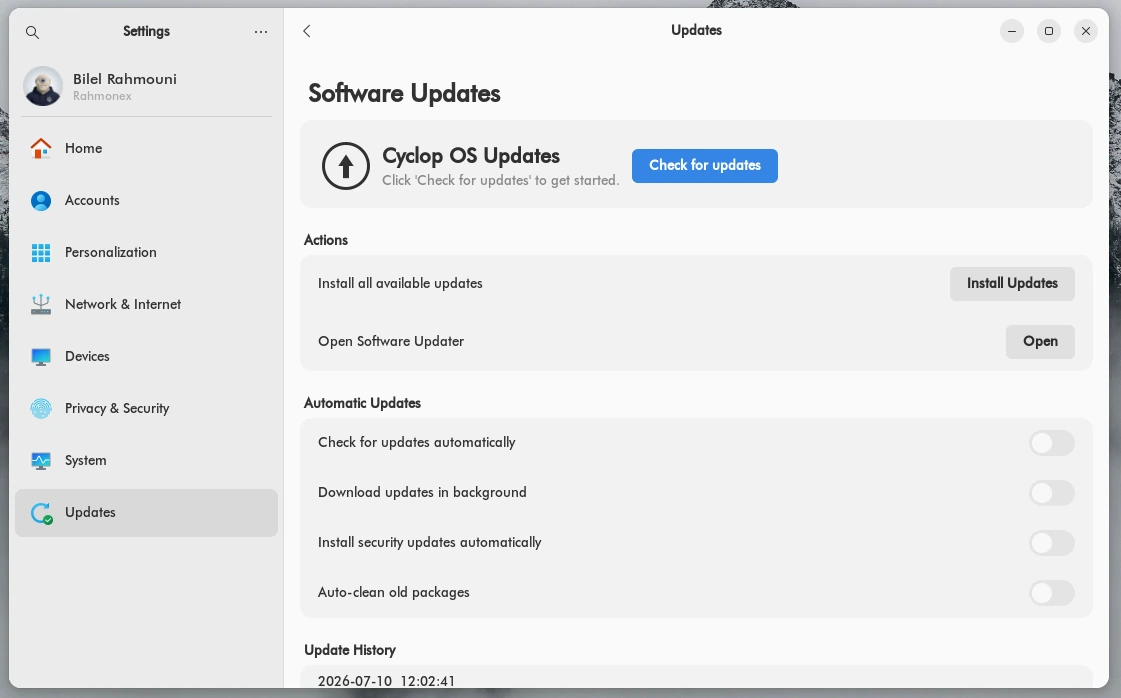
A surprising share of problems are already fixed. Settings, then Updates, then Check for updates.
The machine feels slow
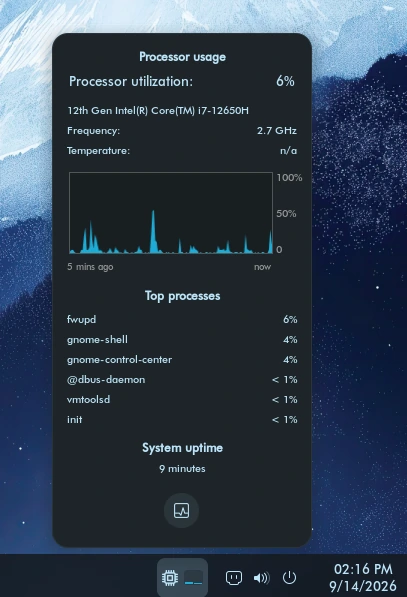
The taskbar carries a processor indicator. Click it and you get the current load, the busiest processes, and how long the machine has been running.
Find what is eating the machine
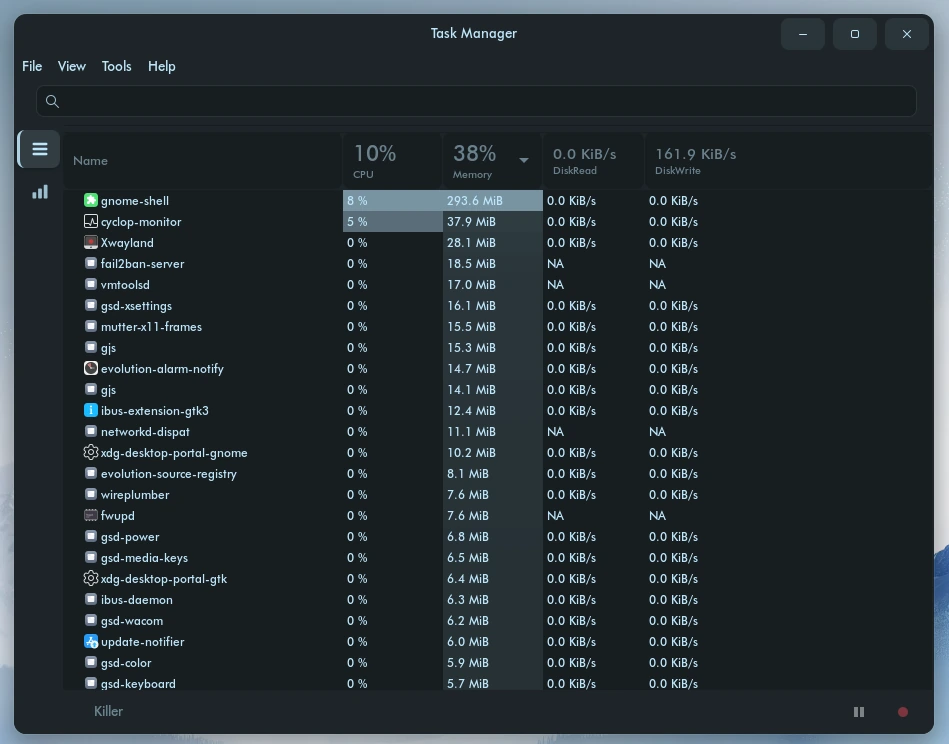
The same indicator opens the task manager. Sort by processor or by memory, and the culprit is usually at the top.
Select a process and stop it there if it stopped responding.
Look at the whole machine
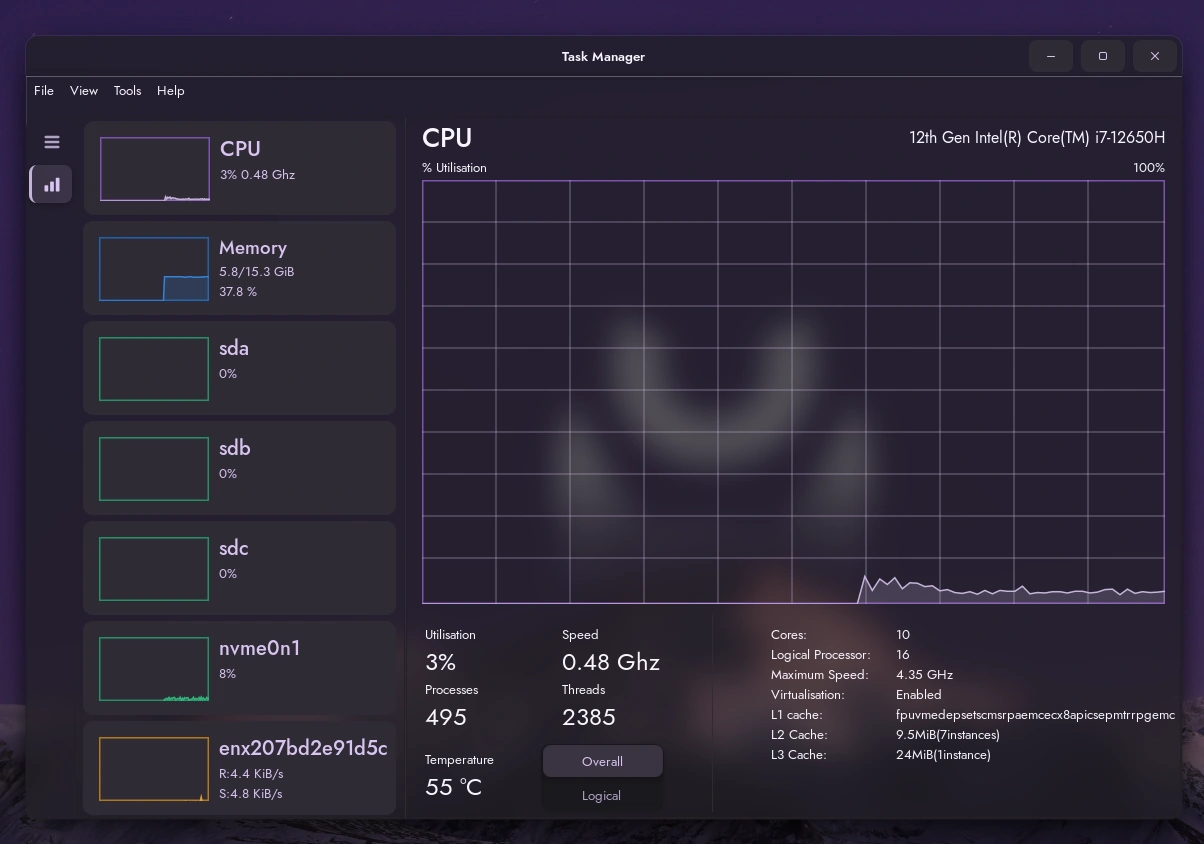
The second view of the task manager shows processor, memory, disk and network over time. It is the view that tells you whether the machine is short of memory or short of disk.
No network
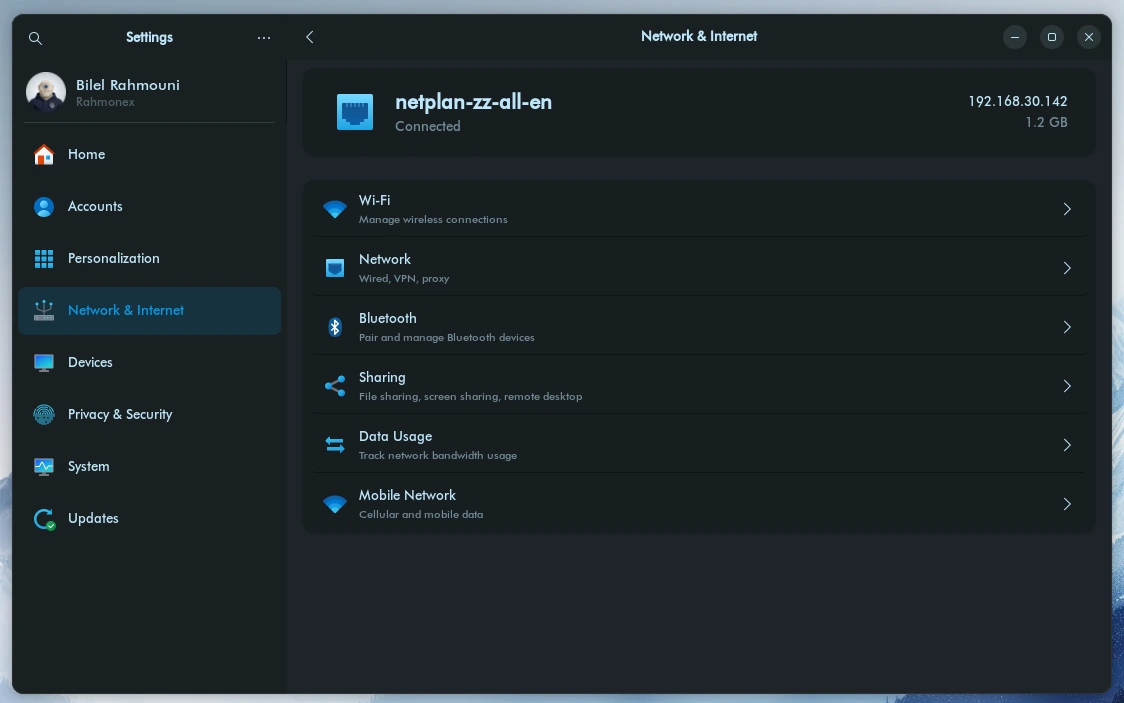
Settings, then Network and Internet. The card at the top says whether you are connected and on which interface.
Wifi, wired, Bluetooth and sharing all live in the same place.
Turn the animations off
On an older machine this is the single change that makes the most difference. Settings, Personalization, Effects, then Enable Animations off.
Still stuck
Ask on the forum. Say what you did, what you expected, and what happened instead, and paste the exact message if there is one. Those three lines are what gets a question answered the same day.
If you have a paid edition, you also have email support, with a first reply within two working days.