
Secure Boot
Secure Boot and the Cyclop key.
Secure Boot only lets the computer start software signed by a key it trusts. Here is what that means for Cyclop OS, how to enrol the Cyclop key once, and what you will see at the first start.
What Secure Boot does, and when you have to act
With Secure Boot on, the firmware checks the signature of everything it starts: the boot loader, then the kernel. Something unsigned, or signed with a key the machine does not know, is refused.
The Ubuntu kernel that ships with Cyclop OS is signed with a key the firmware already trusts, so it starts with Secure Boot on and you do nothing. You only act for the Cyclop kernel (linux-cyclop), which is signed with our own key. That kernel arrives with Patch 3 of version 4.0.
Whether it is on or off, it is your choice: the Cyclop kernel also runs with Secure Boot off, with no key to enrol.
Check the state of your machine
Two commands tell you where you stand. The first says whether Secure Boot is on, the second which kernel is running.
mokutil --sb-state
uname -r
The Cyclop kernel shows 7.3.1-cyclop1-x64v3 or 7.3.1-cyclop1-generic. Anything else is the Ubuntu kernel.
Enrol the Cyclop key (once)
The key is a file installed with the kernel. You hand it to the firmware with mokutil, choose a one-time password, and confirm at the next start. After that, every Cyclop kernel update starts without a prompt.
- Run the command above in a terminal. It asks for a password twice. Pick something short that you will remember for the next two minutes: it is used once and then forgotten.
- Restart the computer.
sudo mokutil --import /usr/share/linux-cyclop/7.3.1-cyclop1-x64v3/cyclop-secureboot.der
The blue screen that comes next often assumes a US keyboard. Choose a password made of letters and digits only, and you will not be caught out by a key that types something else.
The blue screen at the first start
Right after the restart, before Cyclop OS, a blue screen titled MOK management appears. It is the firmware asking you to confirm. Nothing here is a warning about Cyclop: it is the normal way to add a key.
- A first screen says Press any key to perform MOK management, with a countdown of about ten seconds. Press a key before it runs out, or the machine starts as usual and you will have to run the mokutil command again.
- Choose Enroll MOK. If you want to check the key first, choose View key 0: it should name Cyclop OS Secure Boot Signing 2026, Cyclop Technologies OU.
- Choose Continue, then Yes to enrol the key.
- Type the password you set a minute ago.
- Choose Reboot.
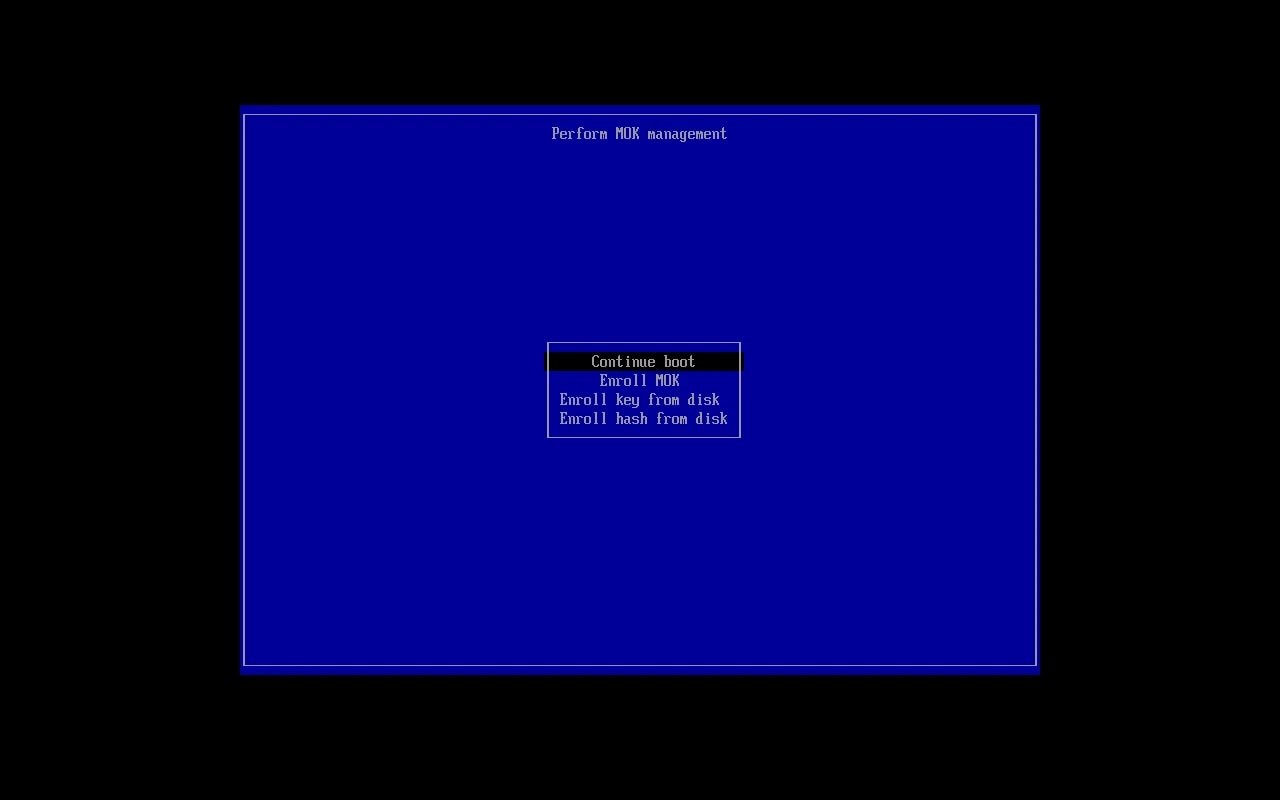
The MOK management menu. Use the arrow keys to reach Enroll MOK, then Enter. Captured in a virtual machine; colours and layout vary a little from one computer to another.
Check that it worked
After the reboot, the kernel should be the Cyclop one, and with Secure Boot on it runs in what is called lockdown integrity mode.
uname -r
cat /sys/kernel/security/lockdown
mokutil --list-enrolled | grep -i cyclop
The lockdown file shows none, integrity or confidentiality, with the active one in brackets. With Secure Boot on and the Cyclop key enrolled, expect [integrity].
If something goes wrong
The screen did not appear and the machine started as before: the request was not kept. Run the mokutil command again and restart.
The machine says the kernel is not signed or refuses to start it: start the Ubuntu kernel from the boot menu (it stays installed next to the Cyclop one), then enrol the key again.
You typed the wrong password: nothing is enrolled. Run mokutil --import again.
Still blocked: switch Secure Boot off in the firmware settings, start the Cyclop kernel, and ask on the forum with the exact message on the screen.
We have followed this path on our own machine and in virtual machines. We have not yet tested it on a wide range of computers, so tell us if yours behaves differently.